GUTENBURG TECHNOLOGIES
A Closer Look: Uncovering Invisible Barriers In Content Creation
UX Researcher
Administrator
Tobbi Software, Private Panels, Google Analytics, Figma, G-Suite, Zoom
Developed research plan, recruited participants, moderated eye tracking sessions and interviews, developed research methods, analyzed data, facilitated client communications, contributed to visual design and content strategy, presented to clients
The context
Tl;dr
Gutenberg Technologies is an e-learning course builder and manager tool that allows users to create online textbooks and resources. They were getting ready to refactor their creation flow and were hoping to make the product more intuitive for corporate use and to look for ways to integrate generative AI to make source creation even easier for their users.
They reached out for help evaluating some of the key features of their content management system (CMS). Through eye-tracking and triangulating qualitative and quantitative data, I identified instances of new users struggling to use the authoring system, which prompted me to impose stronger visual hierarchy and strengthen feature discoverability to align with Gt's business goals.

the roadmap
Project Objectives
This study examined how users create, structure, and organize content within the CMS, specifically exploring:
Table of Contents (TOC): Explore users’ challenges in creating/managing the TOC, their understanding of different options offered in TOC, and the reasoning behind their actions.
Drag-and-Drop: Explore where users get confused, what creates the highest cognitive load, and why drag-and-drop feels difficult.
Authoring from Scratch: Explore users’ starting points, their authoring process, and where challenges or misunderstandings arise.
To explore these research questions, I asked participants to complete 5 tasks that represented key authoring workflows.
The Tasks
Author From Scratch
Create a new project from scratch with three required sections.
Table of Contents (TOC)
Build and modify the TOC by adding pages with content in a specific section.
Drag-and-Drop in TOC and Add Content Reorder pages and add content blocks.
Mixed Task
Navigate to an existing section and rename it to match the scenario prompt.
AI Content Generation
Locate the built-in Generate with AI tool and use it to transform provided text into instructional content.
project journey
(select image for a closer view)
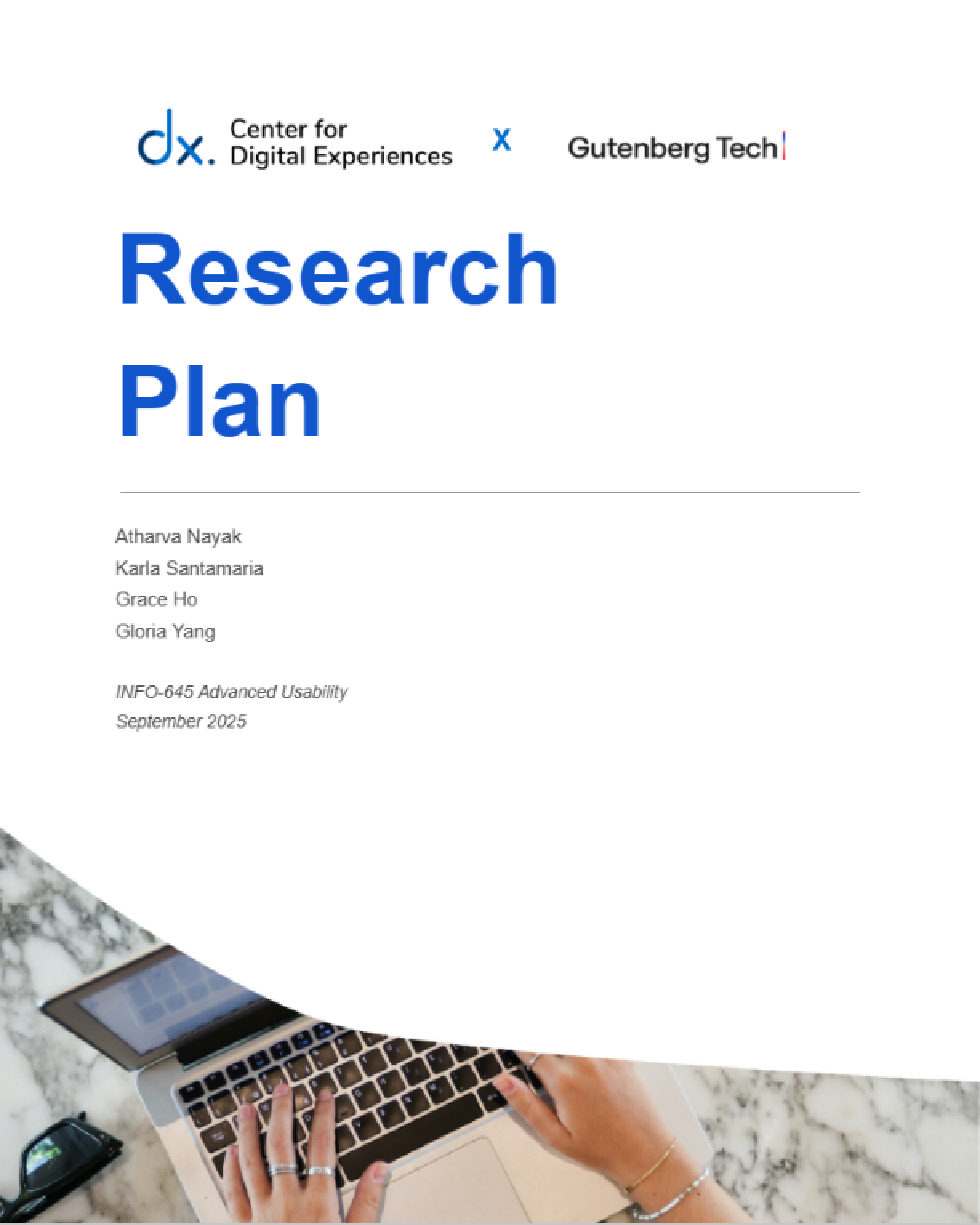
Stage 1. Research planning
Setting up a research plan and objectives based on the provided brief and kick-off meeting
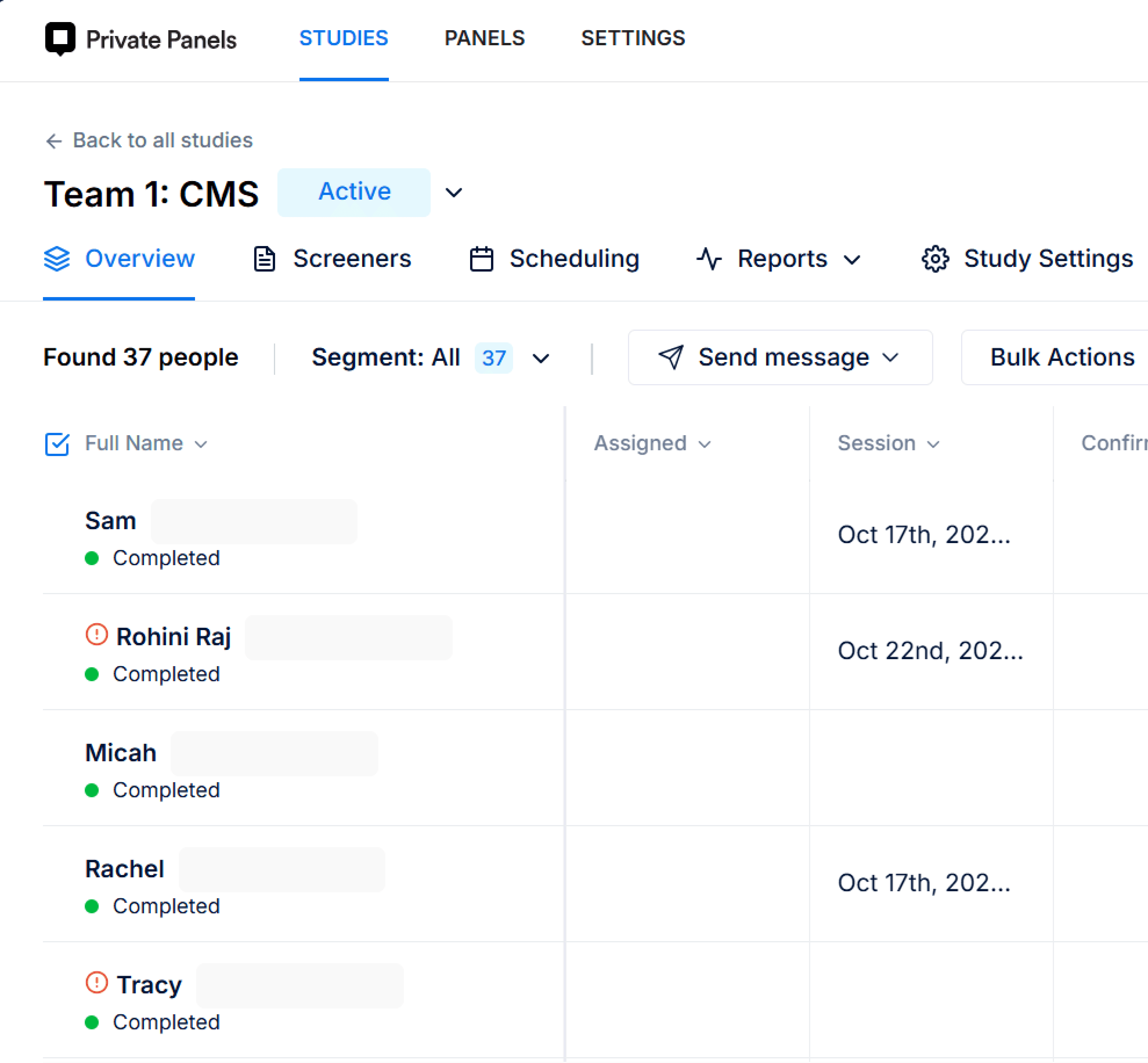
Stage 2. Recruit participants
Keeping in mind the user groups, I recruited 9 participants through private panels, "gorilla recruitment," and Gt's internal network.
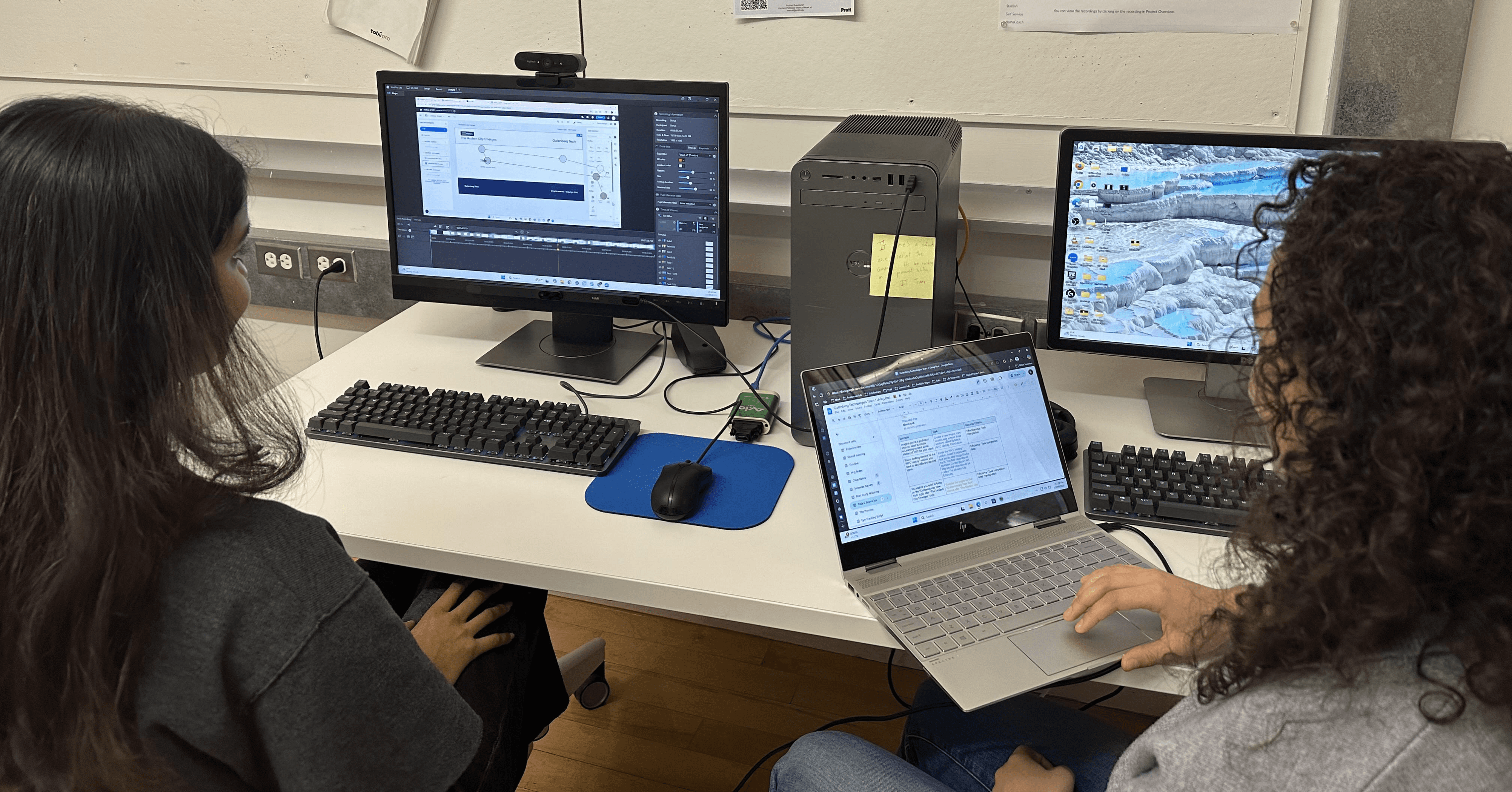
Stage 3. Four eye-tracking studies
Set up and recorded the pilot and moderated eye-tracking tests (45-60mins each) to gather insights on Gt's authoring experience
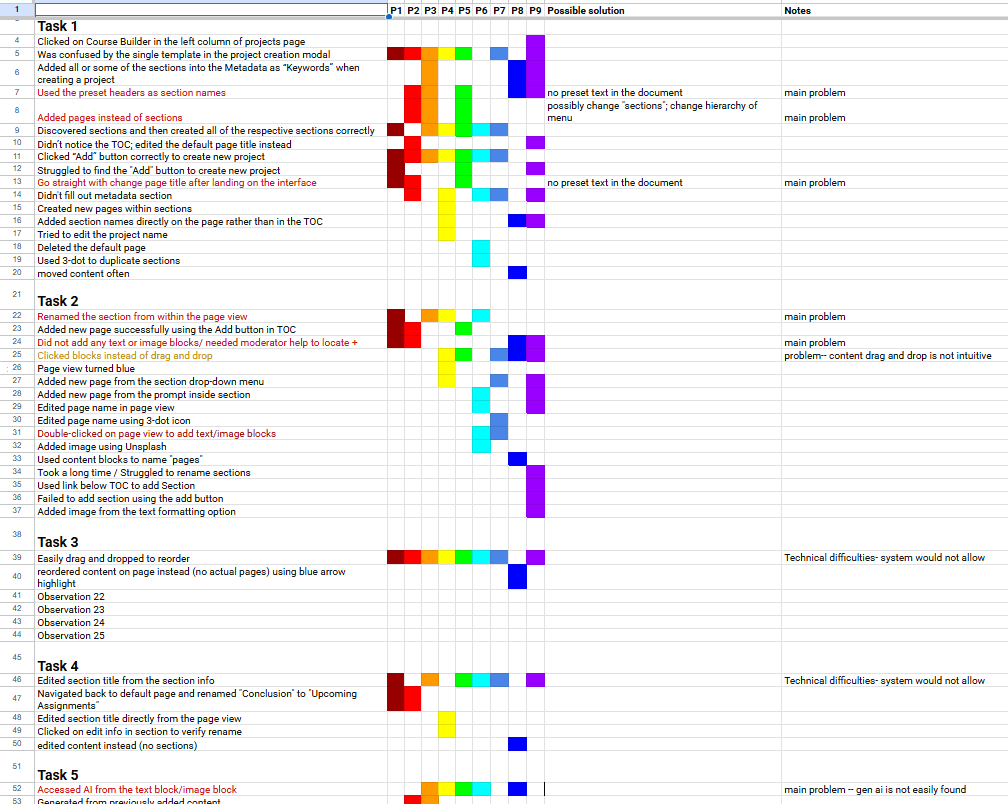
Stage 4. Data synthesis
Document and analyze eye-tracking data (video recording, heat maps, gaze plots and Areas of Interest (AOI).)
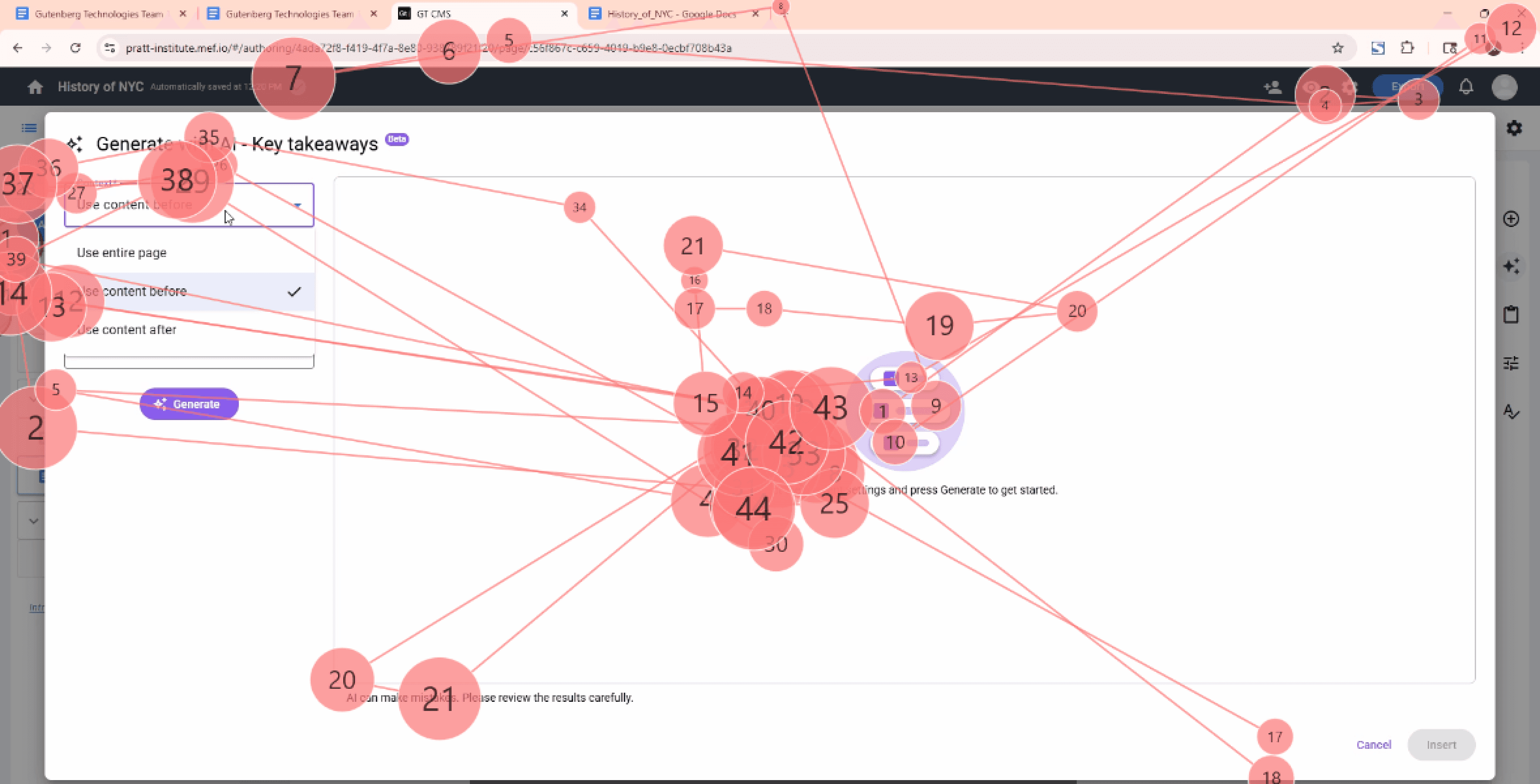
Stage 6. Four eye-tracking studies
Conduct the remaining moderated eye-tracking studies (45-60mins each) and calculated the usability of Gt through selected metrics.
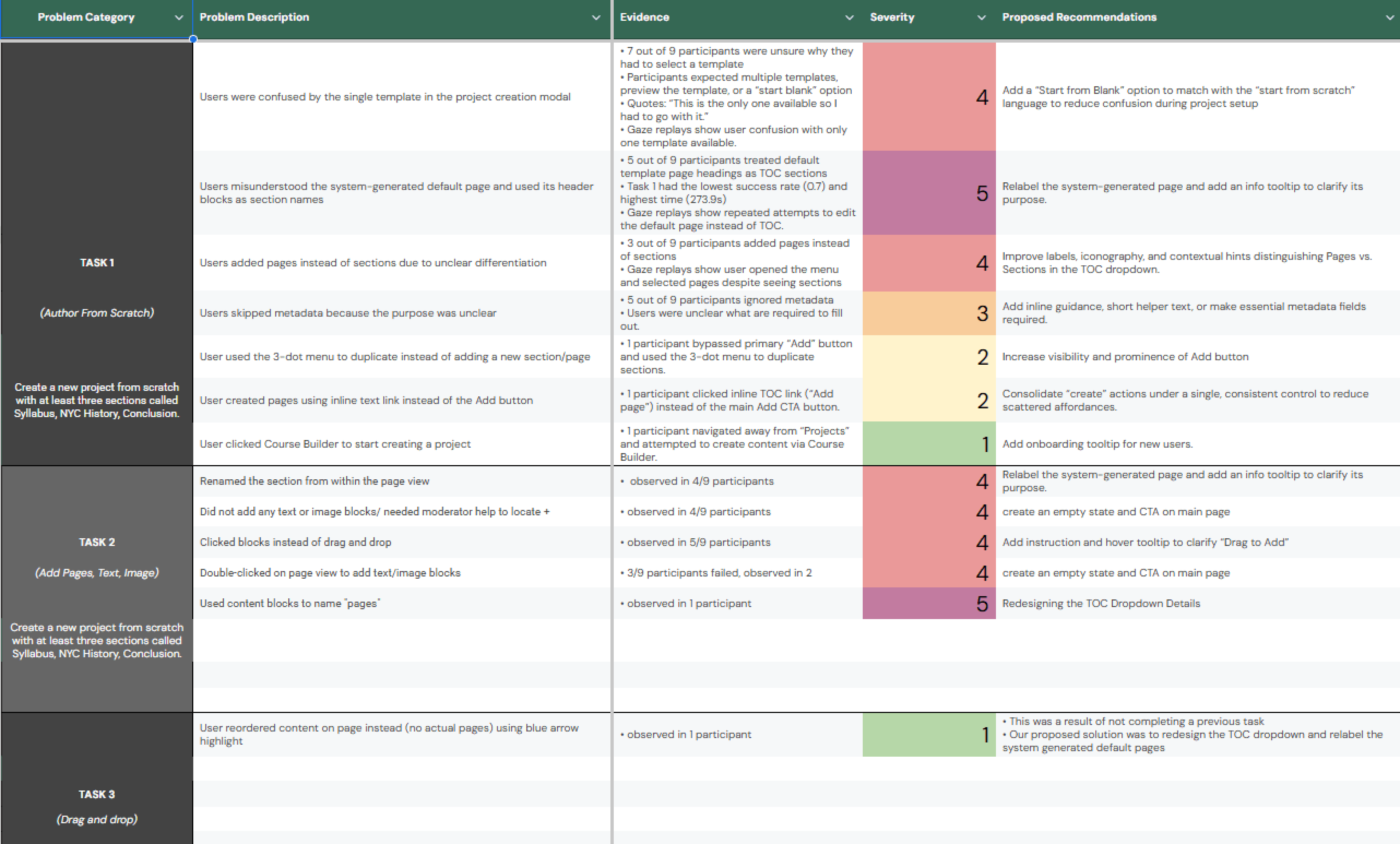
Stage 7. Analyze final findings
Analyze all of the quotes and data to create comprehensive recommendations and possible solutions.
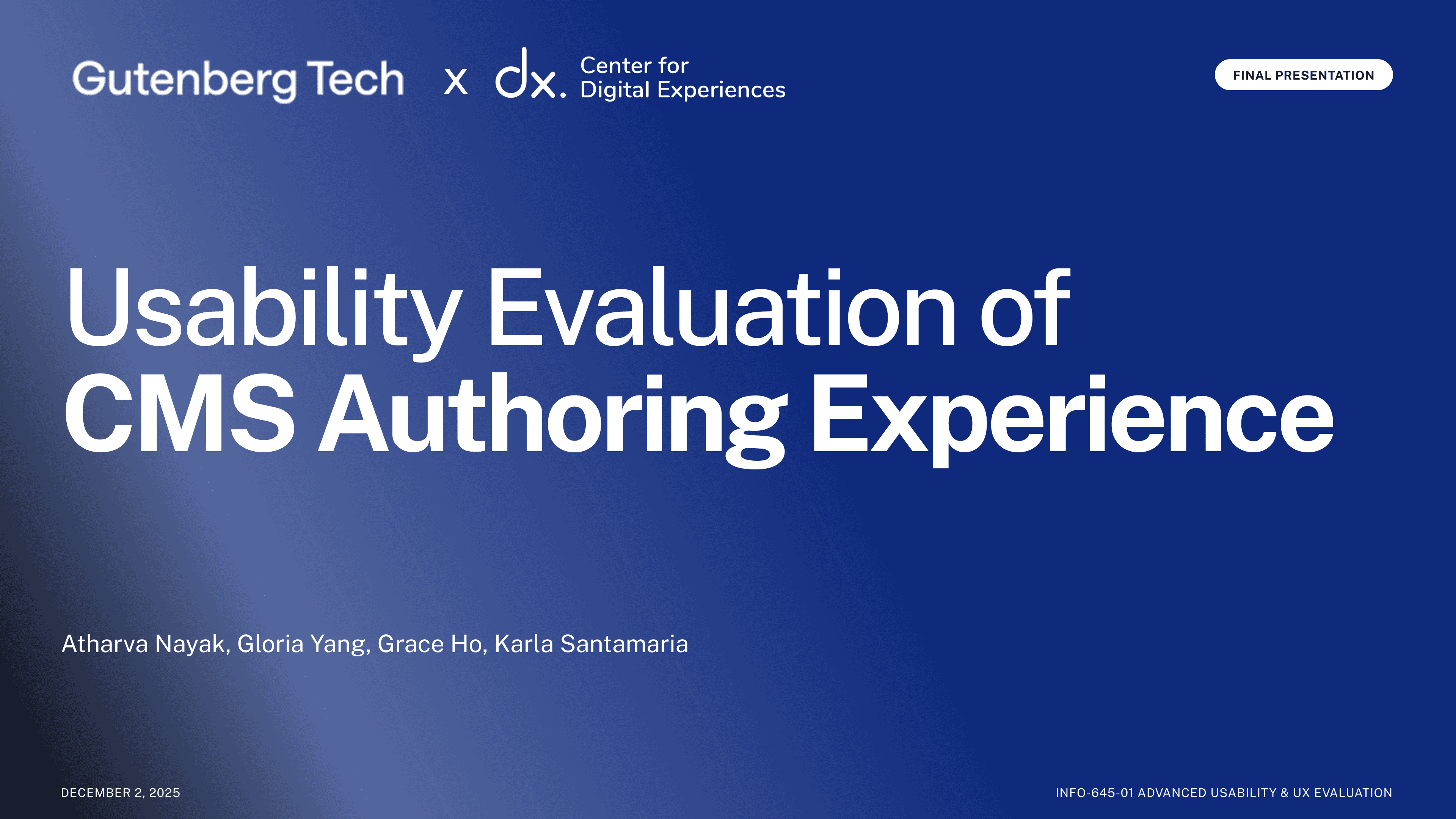
Stage 8. Final presentation
Share all of the findings and recommendations with Gt in the form of a final presentation.
Methodologies and toolkit
Eye-Tracking with

To surface both cognitive and behavioral friction, a selection of core methods were carried out to uncover not just what users said — but what their eyes revealed.
(Select image for a closer view)
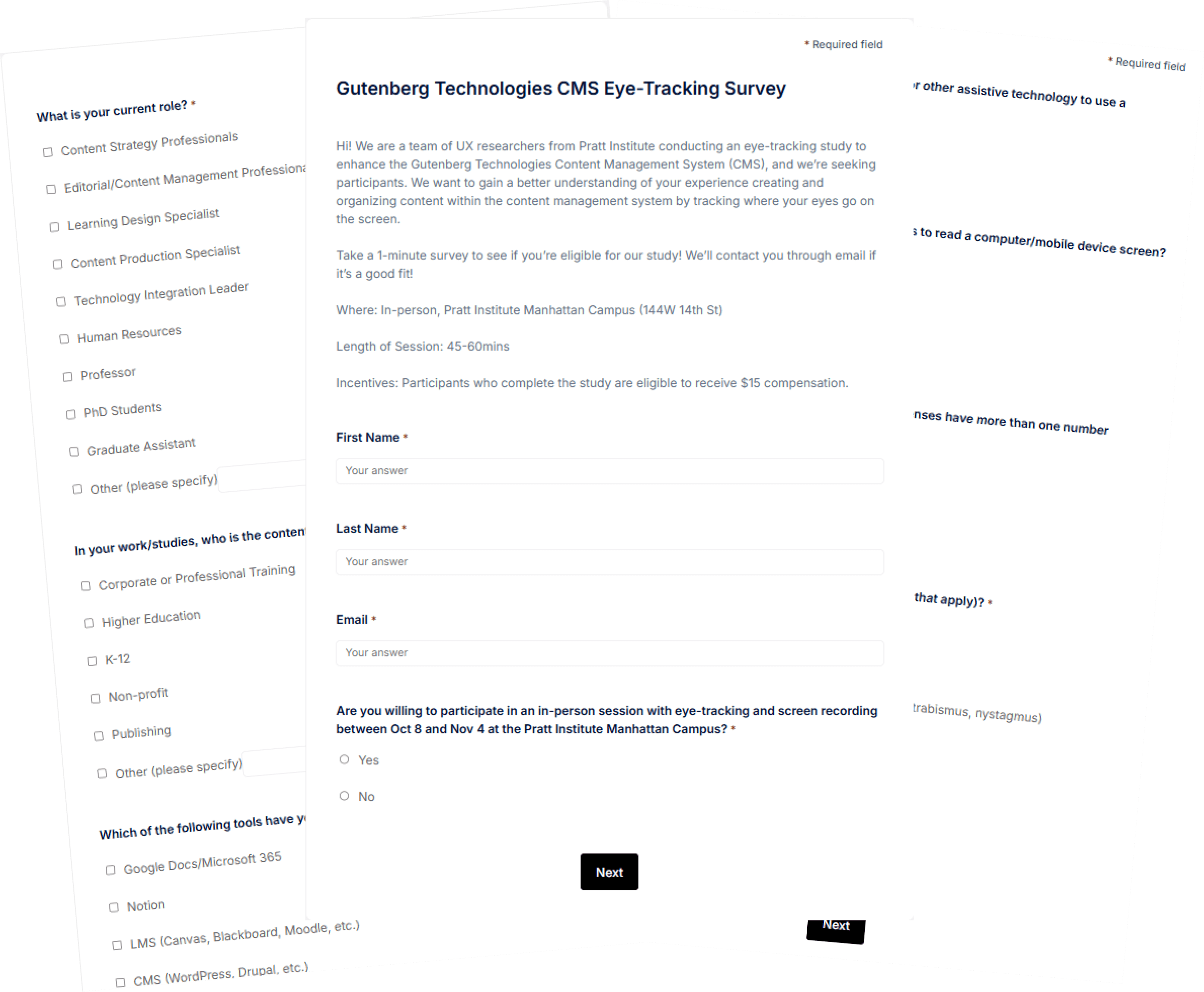
Participant Survey
Ensure the participants fit the targeted demographic and user groups (educational content editors/creators) and ask if they need accommodations
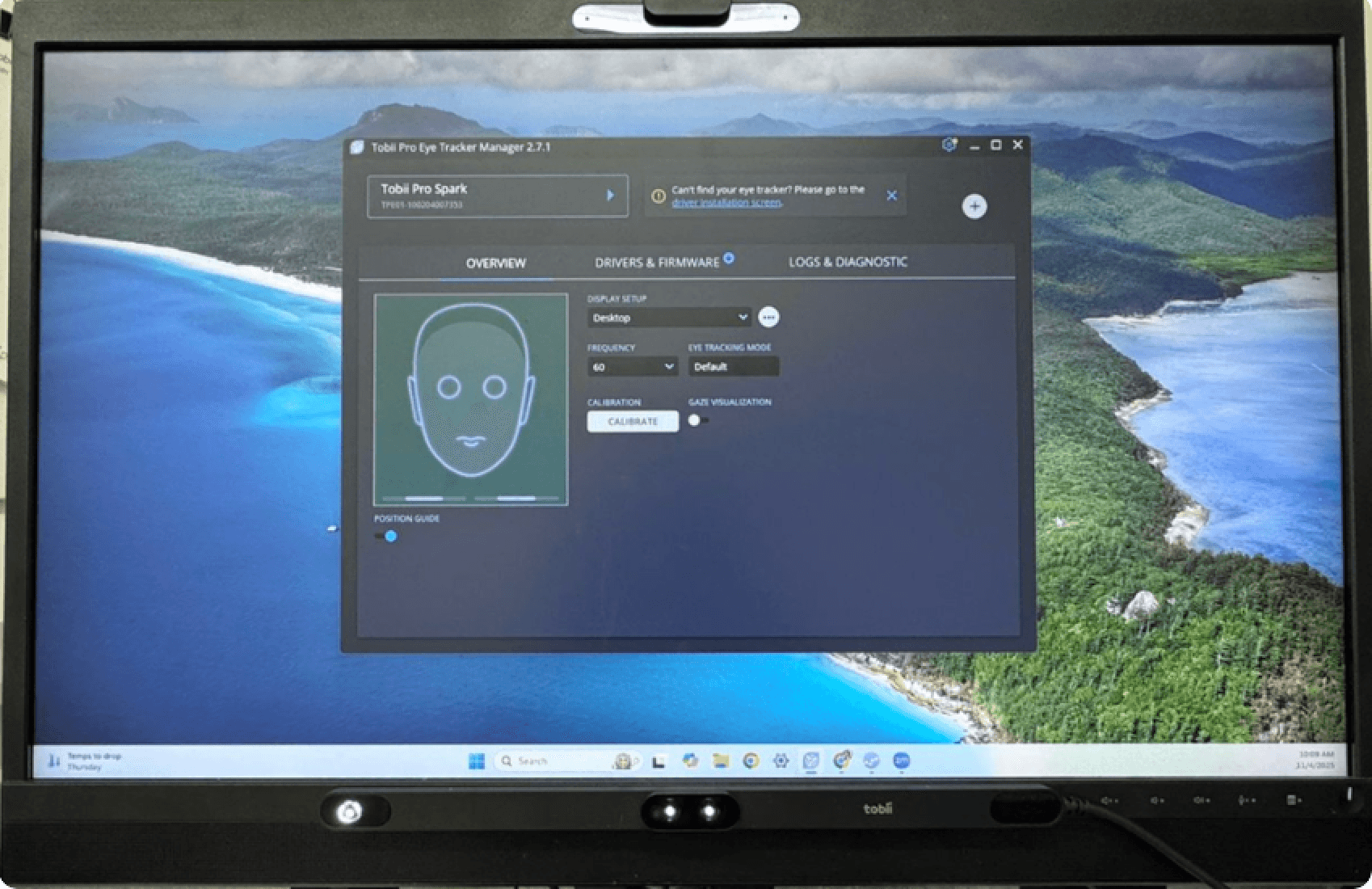
User Testing: Eye-Tracking
Quant. & qual. data surfaced from nine 30-45min sessions. Behavioral observations allowed for further questions & deeper insights
Retrospective Think Aloud (RTA)
Participants watch a replay of their session and are asked to verbally reflect on their thoughts, emotions, and intentions as each moment unfolded
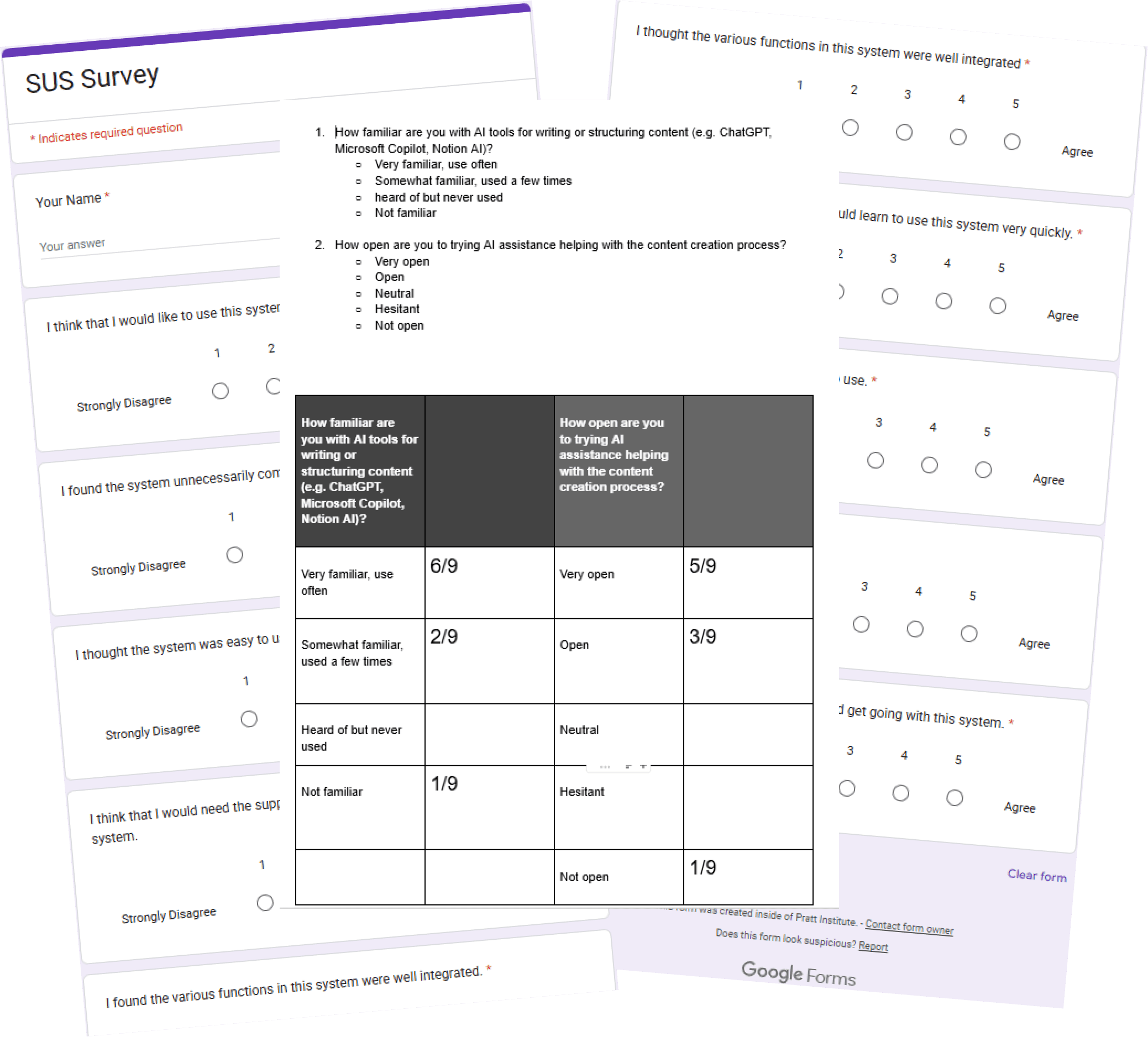
Pre- & Post-Test Surveys
Administered pre- and post-test survey data to capture users’ mental models before and after engaging with the product

Web / Behavioral Analytics
Using Google Analytics to gain further quantitative information about user's clicks rates and drop-off patterns
I triangulated both qualitative and quantitative data, which gave way to rich insights on user behaviors and attitudes, answering questions such as how many, how much? and why or how to fix a problem.
Findings and solutions
How My Research Informed My Design Recommendations
Overall,
findings revealed that the CMS is learnable and familiar, but usability challenges persisted, highlighting opportunities to improve clarity, discoverability, and the authoring experience.
The System Usability Scale (SUS) is a widely used 10-question survey rated on a 1–5 agreement scale to assess perceived product usability.
Participants completed the SUS survey at the end of their session, and after all sessions were completed, I calculated the overall, usability, and learnability scores to validate and contextualize insights from the eye-tracking study.
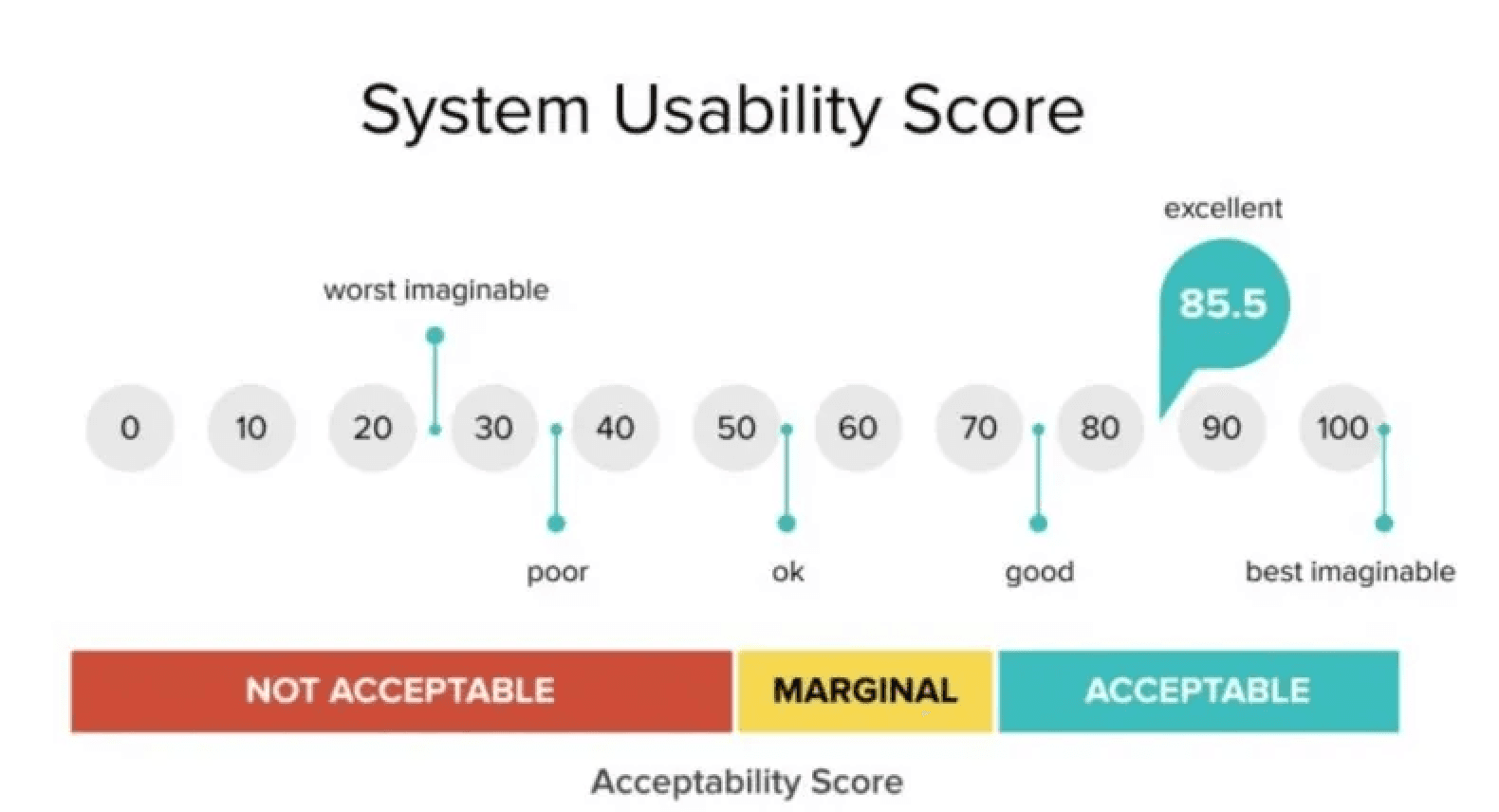
While users picked the CMS up quickly (learnability 72.2), lower usability scores (56.9) brought the overall SUS score to 60, showing clear room for improvement.
Learnability
The tool feels familiar enough for users to learn how to use properly
Usability
However, people struggle to find the right features and understand how to start, which makes it overall less usable
research Finding 1.
Users misinterpreted the system's project structure, preventing effective use of the TOC
Informed by both behavioral and attitudinal data, I found that users misunderstood the system-generated default page’s heading blocks as actual sections, which slowed the entire authoring flow and leading to disorganization in the Table of Contents (TOC).
5 out of 9 participants mistook the system-generated default page for the actual project structure, using its heading blocks as sections
0.7
Task 1 Success Rate
(lowest across all tasks)
4.6
minutes
Task 1 Avg. Completion Time
(highest across all tasks)
Gaze Replay from Participant 2 shows editing the system-generated default page
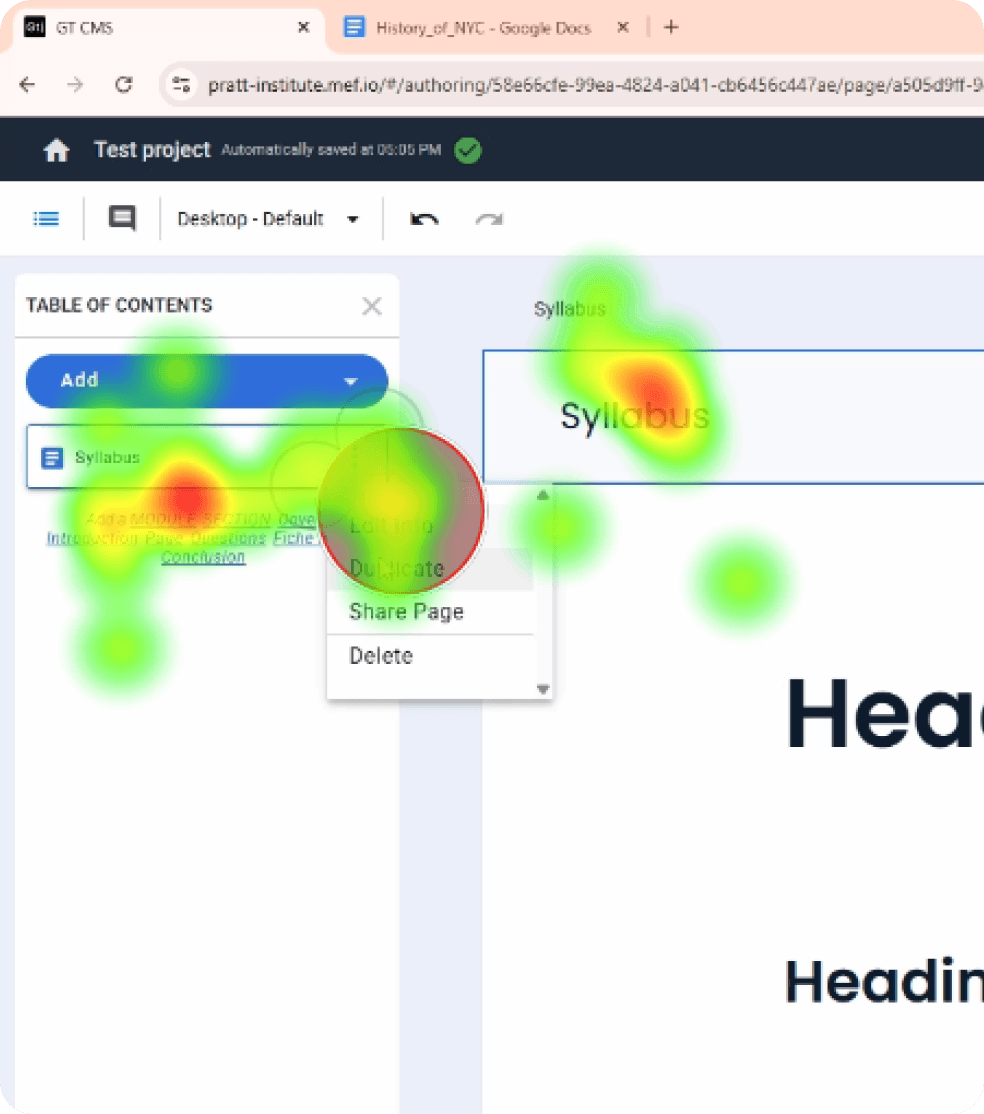
The participant’s gaze lingering on the TOC could indicate possible confusion
Heat map indicates Participant 5’s gaze went to the three dots to duplicate a page rather than the Add button
"I thought these [pages] were sections."
-Participant 5
"What bothered me was the fact that section was in all caps and the rest of the stuff was just lower case."
-Participant 7
“Why there’s so much stuff on this page? And I had to add a section. How do I add a section?”
-Participant 6
I paired behavioral and quant. data with user quotes to further understand users' mental models, which exposed emerging themes and intuitive insights.
design recommendation 1
Restructure TOC, relabel the auto generated page & add an info tooltip to signal its purpose
After observing users struggle with the Table of Contents, I proposed design updates to clarify hierarchy and improve usability.
Indentation and divider lines establish a clear, textbook-style structure and communicate what can be nested.
Button text was bolded and centered to improve discoverability, while removing all-caps labels prevented items from being mistaken for headings instead of clickable options.
Label is a new option available to organize pages by assigning colors and users can Star important pages to revisit
The tooltip helps users understand that the page is a starting reference and not part of their actual project structure, which prevents users from editing the wrong content, and allows them to focus on building sections and pages intentionally.
before
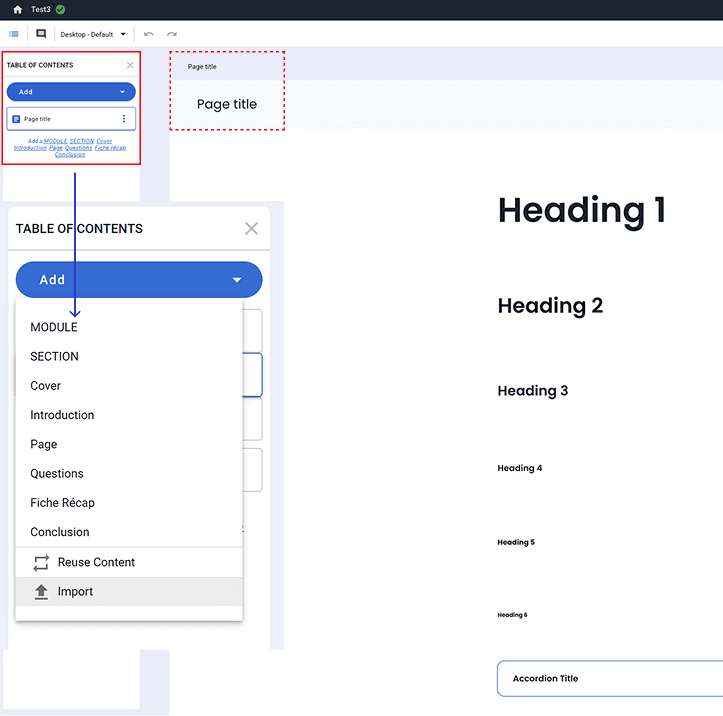
Current System-Generated Template Page in GT CMS
after
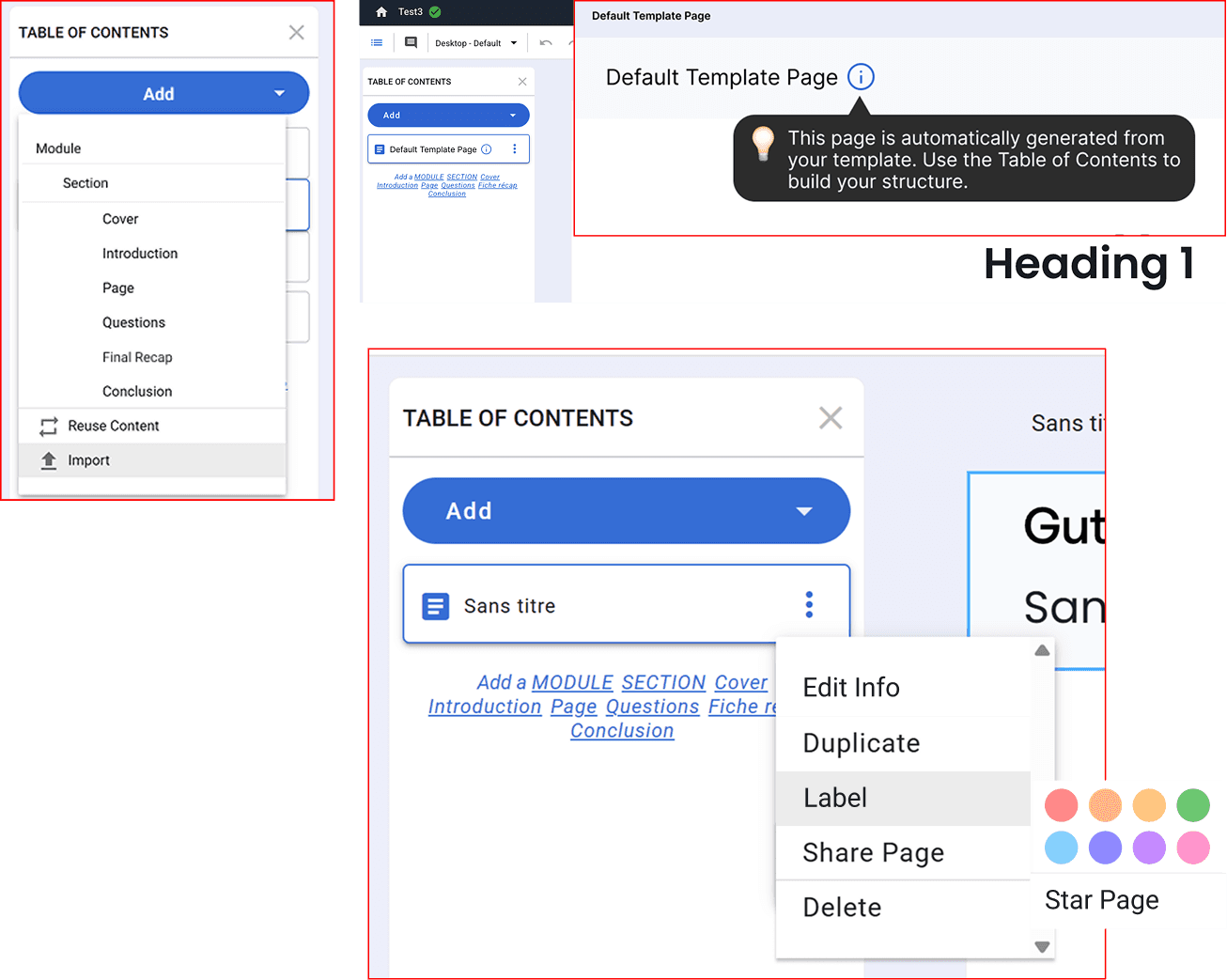
Recommendation Mockup: Redesigned TOC Dropdown, Add Page Customization Options in TOC, Relabeling the System-Generated Page & Adding an Info Tooltip
research finding 2
Users struggled on how to add content, leading to repeated mistakes and hurting overall user experience
When tasked with adding content such as text blocks and images to their page, 3 out of 9 participants could not successfully complete the task, and even more required extra help.
~1.5 min
Standard Deviation
Average Time: ~2 min 48 sec
The S.D. is significant, indicating variability. While some users finished quickly, others took much longer.
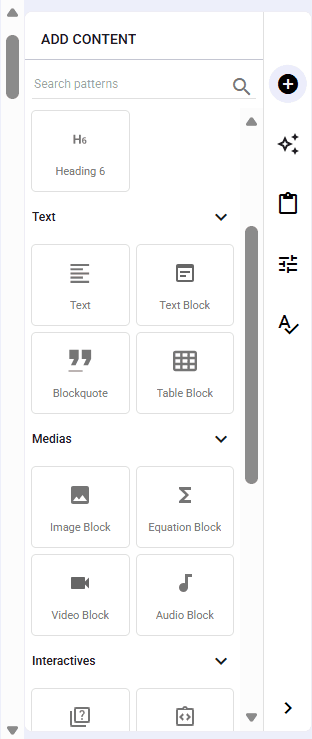
Current Add Content Panel
Gaze Replay from Participant 2 shows participant struggling to find add button and double clicking on page
“the + was not my first instinct of adding a component onto the page itself.”
– Participant 7
“I thought I could just click on page view and it pop-up with an add icon and add dropdown to add content."
– Participant 6
Design recommendation 2.1
Add guiding prompt and “Add Content” button to improve learnability
I designed a guiding prompt to inform users to drag content blocks from the right panel unto the page. This reduces confusion on where/ how to create content. Using the “Add Content” button opens the right panel, reinforcing understanding of the workflow. Adding content updates the empty state dynamically.
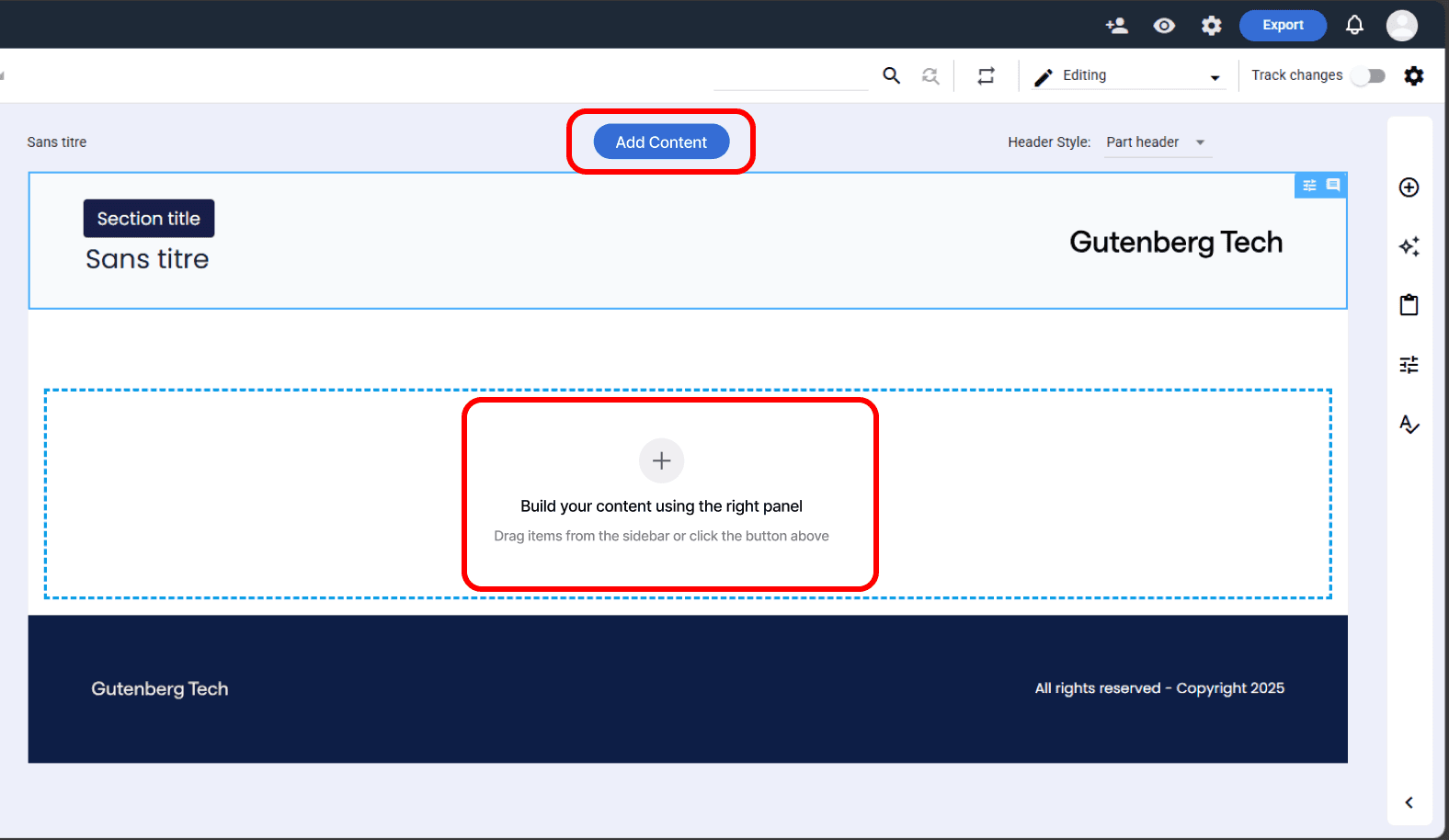
Recommendation Mockup: Add Guiding Prompt and Add Content Button
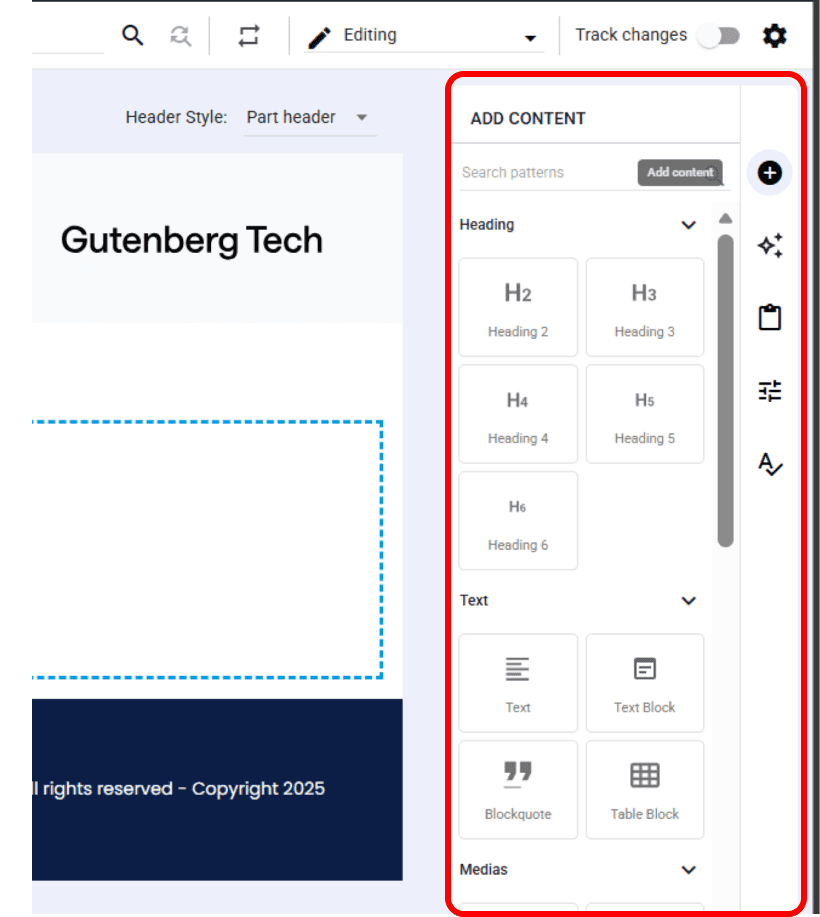
Recommendation Mockup: Use the Add Content Button Open the Right Panel
Design recommendation 2.2
Add instruction hover tooltip and cursor to clarify “Drag to Add”
Because users did not realize they could drag content onto the main page, I recommended adding hover tooltips and cursors to indicate draggability.
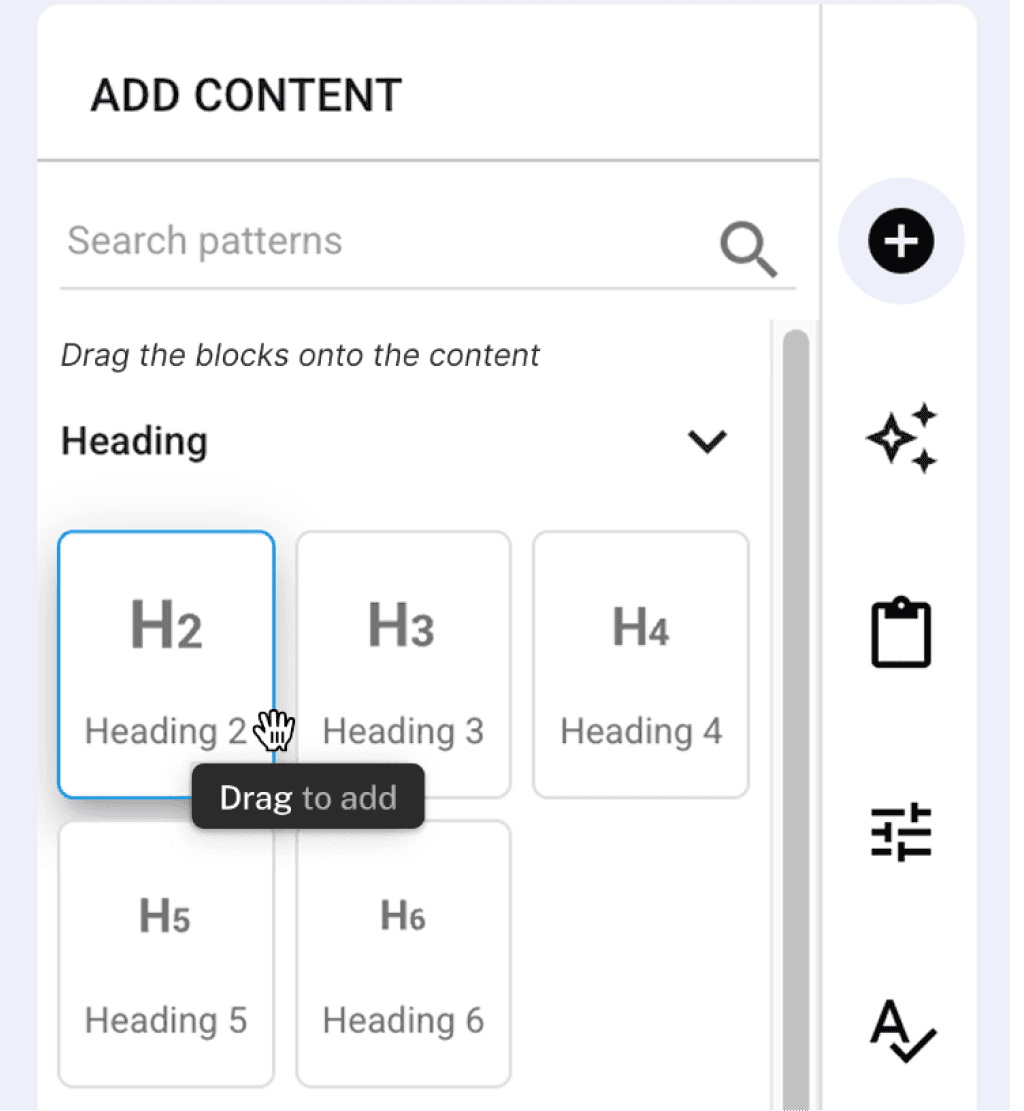
Expected outcomes
Launching A/B Test to validate hypothesis
Improvements are expected across project setup, TOC usage, and content authoring:
Higher task success rate
Lower confusion indicators
Faster and smoother project setup
Clearer understanding of default page vs. actual project structure
More accurate TOC usage
Better drag-and-drop performance
Increased confidence for new users
If more time allowed for this collaboration, I would have launched an A/B test to validate whether the proposed recommendations could reduce confusion, improve task success, and increase authoring efficiency.
Variants Tested
Control (A): Current CMS Experience Variant (B): Proposed Recommendations
Start from Scratch option in project creation
Relabeled “Default Template Page” and Info Tooltip
Updated cursor and “Drag to Reorder” tooltip
Redesigned TOC Dropdown
Prompt to add content on empty pages
“Drag to Add” instruction and tooltip
“Generate with AI” option explanation and
“Drag to Add” tooltip
A unified AI modal
Key Metrics & Target User
A focus on first-time users, as existing users have already developed familiarity with the interface, which would skew results and prevent accurate comparison between control and the variant + a sample size of 100-150 users per variant.
Keeping in mind certain considerations (guardrail metrics, novelty effects, long-term effects) I would test:
Task success rate
Task completion time
Heatmap
Session recording behaviors
Client delivery
Communicating to stakeholders
I presented the above findings and recommendations (as well as others) to the client, and then delivered all documents were in a final email with links all artifacts in a Google Drive for easy access. Here's what the client had to say after the presentation:
Great to have a fresh view on something we’re so accustomed to, especially because we’re hoping to refactor our creation flow next year. This is going to be very useful for us for our upcoming work."
- Gutenburg Technologies
closing and key takeaways
What I learned from this collaboration
Throughout the journey of this work, I had two major takeaways:
Pairing qualitative and quantitative data strengthens storytelling. Combining gaze data with attitudinal feedback allowed me to justify design recommendations with confidence and clarity.
The importance of adaptability. What happens when your last participant drops out of the study last minute? With not much time to recruit through PrivatePanels, I decided to switch to “guerilla recruitment," after communicating with the team, saving much needed time.
Appendix
There were findings that went beyond this case study. Take a deeper look at all the artifacts:
Link to Google Drive Folder for Detailed Materials: https://drive.google.com/drive/folders/1XUTfrjcAz6W3cjjyq2L5Bc3SIFVcnaED?usp=sharing
This folder includes highlight reels (evidence of the findings), recommendation mockups, problem list, rainbow sheets, moderator script (with our task and scenarios), post-test AI survey, research plan, screener questions, SUS survey, and SUS calculator.
GUTENBURG TECHNOLOGIES
A Closer Look: Uncovering Invisible Barriers In Content Creation
UX Researcher
Administrator
Tobbi Software, Private Panels, Google Analytics, Figma, G-Suite, Zoom
Developed research plan, recruited participants, moderated eye tracking sessions and interviews, developed research methods, analyzed data, facilitated client communications, contributed to visual design and content strategy, presented to clients
The context
Tl;dr
Gutenberg Technologies is an e-learning course builder and manager tool that allows users to create online textbooks and resources. They were getting ready to refactor their creation flow and were hoping to make the product more intuitive for corporate use and to look for ways to integrate generative AI to make source creation even easier for their users.
They reached out for help evaluating some of the key features of their content management system (CMS). Through eye-tracking and triangulating qualitative and quantitative data, I identified instances of new users struggling to use the authoring system, which prompted me to impose stronger visual hierarchy and strengthen feature discoverability to align with Gt's business goals.
the roadmap
Project Objectives
This study examined how users create, structure, and organize content within the CMS, specifically exploring:
Table of Contents (TOC): Explore users’ challenges in creating/managing the TOC, their understanding of different options offered in TOC, and the reasoning behind their actions.
Drag-and-Drop: Explore where users get confused, what creates the highest cognitive load, and why drag-and-drop feels difficult.
Authoring from Scratch: Explore users’ starting points, their authoring process, and where challenges or misunderstandings arise.
To explore these research questions, I asked participants to complete 5 tasks that represented key authoring workflows.
The Tasks
Author From Scratch
Create a new project from scratch with three required sections.
Table of Contents (TOC)
Build and modify the TOC by adding pages with content in a specific section.
Drag-and-Drop in TOC and Add Content Reorder pages and add content blocks.
Mixed Task
Navigate to an existing section and rename it to match the scenario prompt.
AI Content Generation
Locate the built-in Generate with AI tool and use it to transform provided text into instructional content.
project journey
(select image for a closer view)
Stage 1. Research planning
Setting up a research plan and objectives based on the provided brief and kick-off meeting
Stage 2. Recruit participants
Keeping in mind the user groups, I recruited 9 participants through private panels, "gorilla recruitment," and Gt's internal network.
Stage 3. Four eye-tracking studies
Set up and recorded the pilot and moderated eye-tracking tests (45-60mins each) to gather insights on Gt's authoring experience
Stage 4. Data synthesis
Document and analyze eye-tracking data (video recording, heat maps, gaze plots and Areas of Interest (AOI).)
Stage 6. Four eye-tracking studies
Conduct the remaining moderated eye-tracking studies (45-60mins each) and calculated the usability of Gt through selected metrics.
Stage 7. Analyze final findings
Analyze all of the quotes and data to create comprehensive recommendations and possible solutions.
Stage 8. Final presentation
Share all of the findings and recommendations with Gt in the form of a final presentation.
Methodologies and toolkit
Eye-Tracking with
To surface both cognitive and behavioral friction, a selection of core methods were carried out to uncover not just what users said — but what their eyes revealed.
(Select image for a closer view)
Participant Survey
Ensure the participants fit the targeted demographic and user groups (educational content editors/creators) and ask if they need accommodations
User Testing: Eye-Tracking
Quant. & qual. data surfaced from nine 30-45min sessions. Behavioral observations allowed for further questions & deeper insights
Retrospective Think Aloud (RTA)
Participants watch a replay of their session and are asked to verbally reflect on their thoughts, emotions, and intentions as each moment unfolded
Pre- & Post-Test Surveys
Administered pre- and post-test survey data to capture users’ mental models before and after engaging with the product
Web / Behavioral Analytics
Using Google Analytics to gain further quantitative information about user's clicks rates and drop-off patterns
I triangulated both qualitative and quantitative data, which gave way to rich insights on user behaviors and attitudes, answering questions such as how many, how much? and why or how to fix a problem.
Findings and solutions
How My Research Informed My Design Recommendations
Overall,
findings revealed that the CMS is learnable and familiar, but usability challenges persisted, highlighting opportunities to improve clarity, discoverability, and the authoring experience.
The System Usability Scale (SUS) is a widely used 10-question survey rated on a 1–5 agreement scale to assess perceived product usability.
Participants completed the SUS survey at the end of their session, and after all sessions were completed, I calculated the overall, usability, and learnability scores to validate and contextualize insights from the eye-tracking study.
While users picked the CMS up quickly (learnability 72.2), lower usability scores (56.9) brought the overall SUS score to 60, showing clear room for improvement.
Learnability
The tool feels familiar enough for users to learn how to use properly
Usability
However, people struggle to find the right features and understand how to start, which makes it overall less usable
research Finding 1.
Users misinterpreted the system's project structure, preventing effective use of the TOC
Informed by both behavioral and attitudinal data, I found that users misunderstood the system-generated default page’s heading blocks as actual sections, which slowed the entire authoring flow and leading to disorganization in the Table of Contents (TOC).
5 out of 9 participants mistook the system-generated default page for the actual project structure, using its heading blocks as sections
0.7
Task 1 Success Rate
(lowest across all tasks)
4.6
minutes
Task 1 Avg. Completion Time
(highest across all tasks)
Gaze Replay from Participant 2 shows editing the system-generated default page
The participant’s gaze lingering on the TOC could indicate possible confusion
Heat map indicates Participant 5’s gaze went to the three dots to duplicate a page rather than the Add button
"I thought these [pages] were sections."
-Participant 5
"What bothered me was the fact that section was in all caps and the rest of the stuff was just lower case."
-Participant 7
“Why there’s so much stuff on this page? And I had to add a section. How do I add a section?”
-Participant 6
I paired behavioral and quant. data with user quotes to further understand users' mental models, which exposed emerging themes and intuitive insights.
design recommendation 1
Restructure TOC, relabel the auto generated page & add an info tooltip to signal its purpose
After observing users struggle with the Table of Contents, I proposed design updates to clarify hierarchy and improve usability.
Indentation and divider lines establish a clear, textbook-style structure and communicate what can be nested.
Button text was bolded and centered to improve discoverability, while removing all-caps labels prevented items from being mistaken for headings instead of clickable options.
Label is a new option available to organize pages by assigning colors and users can Star important pages to revisit
The tooltip helps users understand that the page is a starting reference and not part of their actual project structure, which prevents users from editing the wrong content, and allows them to focus on building sections and pages intentionally.
before
Current System-Generated Template Page in GT CMS
after
Recommendation Mockup: Redesigned TOC Dropdown, Add Page Customization Options in TOC, Relabeling the System-Generated Page & Adding an Info Tooltip
before
Current System-Generated Template Page in GT CMS
after
Recommendation Mockup: Redesigned TOC Dropdown, Add Page Customization Options in TOC, Relabeling the System-Generated Page & Adding an Info Tooltip
Design recommendation 2.1
Add guiding prompt and “Add Content” button to improve learnability
I designed a guiding prompt to inform users to drag content blocks from the right panel unto the page. This reduces confusion on where/ how to create content. Using the “Add Content” button opens the right panel, reinforcing understanding of the workflow. Adding content updates the empty state dynamically.
Recommendation Mockup: Add Guiding Prompt and Add Content Button
Recommendation Mockup: Use the Add Content Button Open the Right Panel
research finding 2
Users struggled on how to add content, leading to repeated mistakes and hurting overall user experience
When tasked with adding content such as text blocks and images to their page, 3 out of 9 participants could not successfully complete the task, and even more required extra help.
~1.5 min
Standard Deviation
Average Time: ~2 min 48 sec
The S.D. is significant, indicating variability. While some users finished quickly, others took much longer.
Current Add Content Panel
Gaze Replay from Participant 2 shows participant struggling to find add button and double clicking on page
“the + was not my first instinct of adding a component onto the page itself.”
– Participant 7
“I thought I could just click on page view and it pop-up with an add icon and add dropdown to add content."
– Participant 6
Design recommendation 2.2
Add instruction hover tooltip and cursor to clarify “Drag to Add”
Because users did not realize they could drag content onto the main page, I recommended adding hover tooltips and cursors to indicate draggability.
Design recommendation 2.1
Add guiding prompt and “Add Content” button to improve learnability
I designed a guiding prompt to inform users to drag content blocks from the right panel unto the page. This reduces confusion on where/ how to create content. Using the “Add Content” button opens the right panel, reinforcing understanding of the workflow. Adding content updates the empty state dynamically.
Recommendation Mockup: Add Guiding Prompt and Add Content Button
Recommendation Mockup: Use the Add Content Button Open the Right Panel
Expected outcomes
Launching A/B Test to validate hypothesis
Improvements are expected across project setup, TOC usage, and content authoring:
Higher task success rate
Lower confusion indicators
Faster and smoother project setup
Clearer understanding of default page vs. actual project structure
More accurate TOC usage
Better drag-and-drop performance
Increased confidence for new users
If more time allowed for this collaboration, I would have launched an A/B test to validate whether the proposed recommendations could reduce confusion, improve task success, and increase authoring efficiency.
Variants Tested
Control (A): Current CMS Experience Variant (B): Proposed Recommendations
Start from Scratch option in project creation
Relabeled “Default Template Page” and Info Tooltip
Updated cursor and “Drag to Reorder” tooltip
Redesigned TOC Dropdown
Prompt to add content on empty pages
“Drag to Add” instruction and tooltip
“Generate with AI” option explanation and
“Drag to Add” tooltip
A unified AI modal
Key Metrics & Target User
A focus on first-time users, as existing users have already developed familiarity with the interface, which would skew results and prevent accurate comparison between control and the variant + a sample size of 100-150 users per variant.
Keeping in mind certain considerations (guardrail metrics, novelty effects, long-term effects) I would test:
Task success rate
Task completion time
Heatmap
Session recording behaviors
Client delivery
Communicating to stakeholders
I presented the above findings and recommendations (as well as others) to the client, and then delivered all documents were in a final email with links all artifacts in a Google Drive for easy access. Here's what the client had to say after the presentation:
Great to have a fresh view on something we’re so accustomed to, especially because we’re hoping to refactor our creation flow next year. This is going to be very useful for us for our upcoming work."
- Gutenburg Technologies
closing and key takeaways
What I learned from this collaboration
Throughout the journey of this work, I had two major takeaways:
Pairing qualitative and quantitative data strengthens storytelling. Combining gaze data with attitudinal feedback allowed me to justify design recommendations with confidence and clarity.
The importance of adaptability. What happens when your last participant drops out of the study last minute? With not much time to recruit through PrivatePanels, I decided to switch to “guerilla recruitment," after communicating with the team, saving much needed time.
Appendix
There were findings that went beyond this case study. Take a deeper look at all the artifacts:
Link to Google Drive Folder for Detailed Materials: https://drive.google.com/drive/folders/1XUTfrjcAz6W3cjjyq2L5Bc3SIFVcnaED?usp=sharing
This folder includes highlight reels (evidence of the findings), recommendation mockups, problem list, rainbow sheets, moderator script (with our task and scenarios), post-test AI survey, research plan, screener questions, SUS survey, and SUS calculator.
GUTENBURG TECHNOLOGIES
A Closer Look: Uncovering Invisible Barriers In Content Creation
UX Researcher
Administrator
Tobbi Software, Private Panels, Google Analytics, Figma, G-Suite, Zoom
Developed research plan, recruited participants, moderated eye tracking sessions and interviews, developed research methods, analyzed data, facilitated client communications, contributed to visual design and content strategy, presented to clients
The context
Tl;dr
Gutenberg Technologies is an e-learning course builder and manager tool that allows users to create online textbooks and resources. They were getting ready to refactor their creation flow and were hoping to make the product more intuitive for corporate use and to look for ways to integrate generative AI to make source creation even easier for their users.
They reached out for help evaluating some of the key features of their content management system (CMS). Through eye-tracking and triangulating qualitative and quantitative data, I identified instances of new users struggling to use the authoring system, which prompted me to impose stronger visual hierarchy and strengthen feature discoverability to align with Gt's business goals.
Design recommendation 2.2
Add instruction hover tooltip and cursor to clarify “Drag to Add”
Because users did not realize they could drag content onto the main page, I recommended adding hover tooltips and cursors to indicate draggability.
Expected outcomes
Launching A/B Test to validate hypothesis
Improvements are expected across project setup, TOC usage, and content authoring:
Higher task success rate
Lower confusion indicators
Faster and smoother project setup
Clearer understanding of default page vs. actual project structure
More accurate TOC usage
Better drag-and-drop performance
Increased confidence for new users
If more time allowed for this collaboration, I would have launched an A/B test to validate whether the proposed recommendations could reduce confusion, improve task success, and increase authoring efficiency.
Variants Tested
Control (A): Current CMS Experience Variant (B): Proposed Recommendations
Start from Scratch option in project creation
Relabeled “Default Template Page” and Info Tooltip
Updated cursor and “Drag to Reorder” tooltip
Redesigned TOC Dropdown
Prompt to add content on empty pages
“Drag to Add” instruction and tooltip
“Generate with AI” option explanation and
“Drag to Add” tooltip
A unified AI modal
Key Metrics & Target User
A focus on first-time users, as existing users have already developed familiarity with the interface, which would skew results and prevent accurate comparison between control and the variant + a sample size of 100-150 users per variant.
Keeping in mind certain considerations (guardrail metrics, novelty effects, long-term effects) I would test:
Task success rate
Task completion time
Heatmap
Session recording behaviors
Client delivery
Communicating to stakeholders
I presented the above findings and recommendations (as well as others) to the client, and then delivered all documents were in a final email with links all artifacts in a Google Drive for easy access. Here's what the client had to say after the presentation:
Great to have a fresh view on something we’re so accustomed to, especially because we’re hoping to refactor our creation flow next year. This is going to be very useful for us for our upcoming work."
- Gutenburg Technologies
closing and key takeaways
What I learned from this collaboration
Throughout the journey of this work, I had two major takeaways:
Pairing qualitative and quantitative data strengthens storytelling. Combining gaze data with attitudinal feedback allowed me to justify design recommendations with confidence and clarity.
The importance of adaptability. What happens when your last participant drops out of the study last minute? With not much time to recruit through PrivatePanels, I decided to switch to “guerilla recruitment," after communicating with the team, saving much needed time.
Appendix
There were findings that went beyond this case study. Take a deeper look at all the artifacts:
Link to Google Drive Folder for Detailed Materials: https://drive.google.com/drive/folders/1XUTfrjcAz6W3cjjyq2L5Bc3SIFVcnaED?usp=sharing
This folder includes highlight reels (evidence of the findings), recommendation mockups, problem list, rainbow sheets, moderator script (with our task and scenarios), post-test AI survey, research plan, screener questions, SUS survey, and SUS calculator.